# Create swipe views with tabs and viewpager in Android using Kotlin
Hi guys,
We will learn about how to add [**TabLayout**](https://developer.android.com/reference/com/google/android/material/tabs/TabLayout) with **ViewPager** in an app. TabLayout provides a horizontal layout to display tabs.
Lets starts with code:
#### Add TabLayout and ViewPager to your Main/Host Layout
It can be a activity or fragment, I have used fragment here rootlayout can be constraintlayout or LinearLayout.
##### Remember this should be in Host Activity/Fragment.
- First Create tablayout
- below that add ViewPager
```
```
Above We have Created tablayout which is the container which will contain the tabs Button for eg: tab 1 or tab 2.
The Viewpager is where the screen or fragments loads.
#### Create Fragments which we want to display
Here I want to display 2 fragment So I will be adding 2 fragments.
Let me show sample of Each Fragment:
- Create number of fragments you need
- Add data in each Fragment
##### ProfileListFragment.kt
```
class ProfileListFragment : Fragment() {
val ARG_PAGE = "ARG_PAGE"
private lateinit var binding: FragmentProfileListBinding
override fun onCreate(savedInstanceState: Bundle?) {
super.onCreate(savedInstanceState)
}
override fun onViewCreated(view: View, savedInstanceState: Bundle?) {
super.onViewCreated(view, savedInstanceState)
//here will be data to show what you want to show
}
override fun onCreateView(
inflater: LayoutInflater, container: ViewGroup?,
savedInstanceState: Bundle?
): View {
// Inflate the layout for this fragment
binding =
DataBindingUtil.inflate(inflater, R.layout.fragment_profile_list, container, false)
return binding.root
}
companion object {
@JvmStatic
fun newInstance(page: Int) =
ProfileListFragment().apply {
val bundle = Bundle()
bundle.putInt(ARG_PAGE, page);
val fragment = ProfileListFragment()
fragment.arguments = bundle
return fragment
}
}
}
```
Please Note I use Data Binding.
You can add any data which you want to display here, now create another fragment based on prefences.
#### Create FragmentPagerAdapter
This will be used as adapter for Fragments such as this will help to change fragments giving counts of fragments, as adapter works.
- Add private val myContext: Context, fm: FragmentManager?, var totalTabs: Int to Constructor
- In getItem add fragment to position which you want to show, 0 means first tab , 1 means 2nd tab and so on.
```kotlin
class AppFragmentPagerAdapter(
private val myContext: Context,
fm: FragmentManager?,
var totalTabs: Int
) :
FragmentPagerAdapter(fm!!) {
// this is for fragment tabs
override fun getItem(position: Int): Fragment {
return when (position) {
0 -> {
ProfileListFragment()
}
1 -> {
ProfileListFragment2()
}
else -> ProfileListFragment()
}
}
// this counts total number of tabs
override fun getCount(): Int {
return totalTabs
}
}
```
#### Lets Add tabs Dynamically to host Screen
```
binding.tabSlidingTabs.addTab(binding.tabSlidingTabs.newTab().setText("Your Questions"));
binding.tabSlidingTabs.addTab(binding.tabSlidingTabs.newTab().setText("Your Answers"));
```
The above code will add two tabs now the screen not setup but two tabs/buttons are set with title.
#### Initialize Adapter with viewpager
- Initialize the recently created `AppFragmentPagerAdapter` to adapter variable.
- Pass adapter to the viewpager.
- add addOnPageChangeListener to viewpager.
```
val adapter = AppFragmentPagerAdapter(
requireContext(),
childFragmentManager,
binding.tabSlidingTabs.tabCount
)
binding.viewpager.adapter = adapter
binding.viewpager.addOnPageChangeListener(TabLayout.TabLayoutOnPageChangeListener(binding.tabSlidingTabs))
```
#### Add On tab Click Listener
Here we will setup tabs on click listener.
- Add OnTabSelected currentItem = tab.position
```
binding.tabSlidingTabs.addOnTabSelectedListener(object : TabLayout.OnTabSelectedListener {
override fun onTabSelected(tab: TabLayout.Tab) {
binding.viewpager.currentItem = tab.position
}
override fun onTabUnselected(tab: TabLayout.Tab) {
}
override fun onTabReselected(tab: TabLayout.Tab) {
binding.viewpager.currentItem = tab.position
}
})
```
Done thats it.
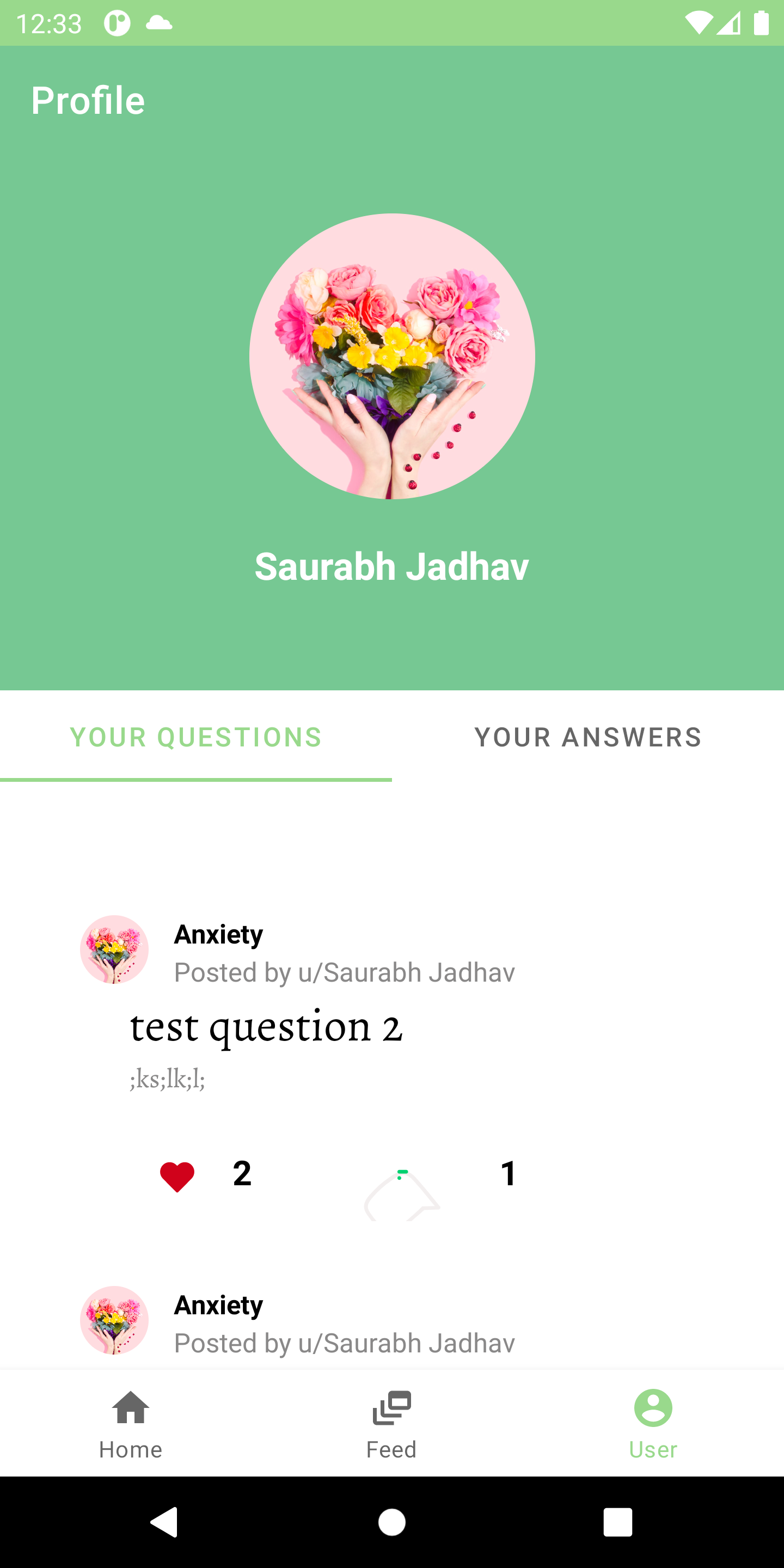
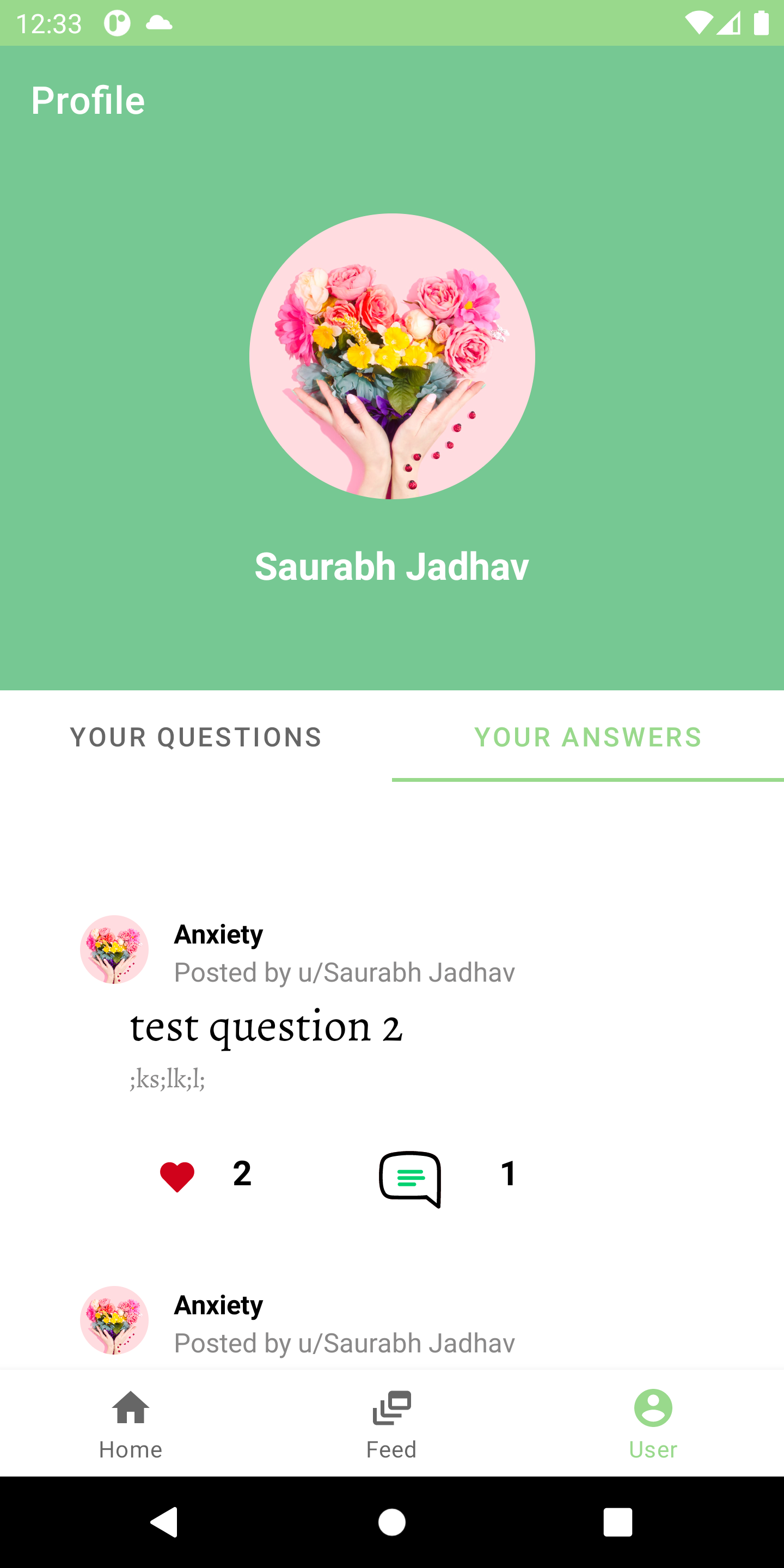
Lets me show you final screen after adding data to screen.
Output:
I hope you have liked it Lets learn more about Android Development together.