

Create swipe views with tabs and viewpager in Android using Kotlin
Hi guys,
We will learn about how to add TabLayout with ViewPager in an app. TabLayout provides a horizontal layout to display tabs.
Lets starts with code:
Add TabLayout and ViewPager to your Main/Host Layout
It can be a activity or fragment, I have used fragment here rootlayout can be constraintlayout or LinearLayout.
Remember this should be in Host Activity/Fragment.
- First Create tablayout
- below that add ViewPager
<com.google.android.material.tabs.TabLayout
                android:id="@+id/tab_sliding_tabs"
                android:layout_width="match_parent"
                android:layout_height="wrap_content"
                android:layout_marginTop="16dp"
                app:layout_constraintEnd_toEndOf="parent"
                app:layout_constraintStart_toStartOf="parent"
                app:layout_constraintTop_toBottomOf="@+id/tv_mindful_points"
                app:tabMode="fixed" />


            <androidx.viewpager.widget.ViewPager
                android:id="@+id/viewpager"
                android:layout_width="match_parent"
                android:layout_height="0dp"
                android:background="@android:color/white"
                app:layout_constraintBottom_toBottomOf="parent"
                app:layout_constraintEnd_toEndOf="parent"
                app:layout_constraintStart_toStartOf="parent"
                app:layout_constraintTop_toBottomOf="@+id/tab_sliding_tabs" />
Above We have Created tablayout which is the container which will contain the tabs Button for eg: tab 1 or tab 2.
The Viewpager is where the screen or fragments loads.
Create Fragments which we want to display
Here I want to display 2 fragment So I will be adding 2 fragments.
Let me show sample of Each Fragment:
- Create number of fragments you need
- Add data in each Fragment
ProfileListFragment.kt
class ProfileListFragment : Fragment() {

    val ARG_PAGE = "ARG_PAGE"

    private lateinit var binding: FragmentProfileListBinding

    override fun onCreate(savedInstanceState: Bundle?) {
        super.onCreate(savedInstanceState)

    }

    override fun onViewCreated(view: View, savedInstanceState: Bundle?) {
        super.onViewCreated(view, savedInstanceState)
       //here will be data to show what you want to show

    }


    override fun onCreateView(
        inflater: LayoutInflater, container: ViewGroup?,
        savedInstanceState: Bundle?
    ): View {
        // Inflate the layout for this fragment
        binding =
            DataBindingUtil.inflate(inflater, R.layout.fragment_profile_list, container, false)
        return binding.root
    }

    companion object {

        @JvmStatic
        fun newInstance(page: Int) =
            ProfileListFragment().apply {
                val bundle = Bundle()
                bundle.putInt(ARG_PAGE, page);
                val fragment = ProfileListFragment()
                fragment.arguments = bundle
                return fragment
            }
    }
}
Please Note I use Data Binding.
You can add any data which you want to display here, now create another fragment based on prefences.
Create FragmentPagerAdapter
This will be used as adapter for Fragments such as this will help to change fragments giving counts of fragments, as adapter works.
- Add private val myContext: Context, fm: FragmentManager?, var totalTabs: Int to Constructor
- In getItem add fragment to position which you want to show, 0 means first tab , 1 means 2nd tab and so on.
class AppFragmentPagerAdapter(
    private val myContext: Context,
    fm: FragmentManager?,
    var totalTabs: Int
) :
    FragmentPagerAdapter(fm!!) {
    // this is for fragment tabs
    override fun getItem(position: Int): Fragment {
        return when (position) {
            0 -> {
                ProfileListFragment()
            }
            1 -> {
                ProfileListFragment2()
            }
            else -> ProfileListFragment()
        }
    }

    // this counts total number of tabs
    override fun getCount(): Int {
        return totalTabs
    }
}
Lets Add tabs Dynamically to host Screen
binding.tabSlidingTabs.addTab(binding.tabSlidingTabs.newTab().setText("Your Questions"));
binding.tabSlidingTabs.addTab(binding.tabSlidingTabs.newTab().setText("Your Answers"));
The above code will add two tabs now the screen not setup but two tabs/buttons are set with title.
Initialize Adapter with viewpager
- Initialize the recently created
AppFragmentPagerAdapterto adapter variable. - Pass adapter to the viewpager.
- add addOnPageChangeListener to viewpager.
val adapter = AppFragmentPagerAdapter(
    requireContext(),
    childFragmentManager,
    binding.tabSlidingTabs.tabCount
)
binding.viewpager.adapter = adapter
binding.viewpager.addOnPageChangeListener(TabLayout.TabLayoutOnPageChangeListener(binding.tabSlidingTabs))
Add On tab Click Listener
Here we will setup tabs on click listener.
- Add OnTabSelected currentItem = tab.position
binding.tabSlidingTabs.addOnTabSelectedListener(object : TabLayout.OnTabSelectedListener {
    override fun onTabSelected(tab: TabLayout.Tab) {
        binding.viewpager.currentItem = tab.position
    }

    override fun onTabUnselected(tab: TabLayout.Tab) {

    }

    override fun onTabReselected(tab: TabLayout.Tab) {
        binding.viewpager.currentItem = tab.position

    }
})
Done thats it.
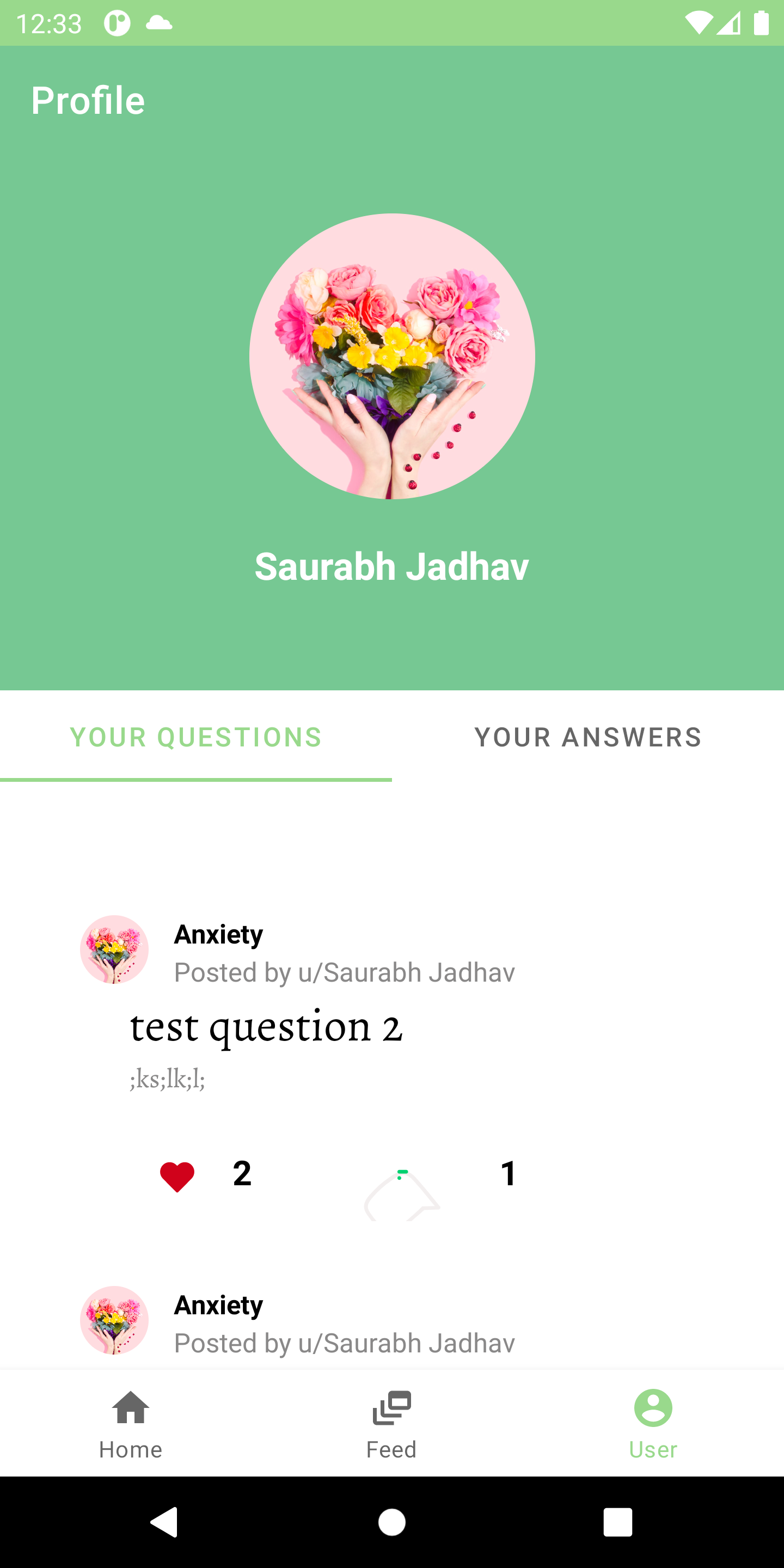
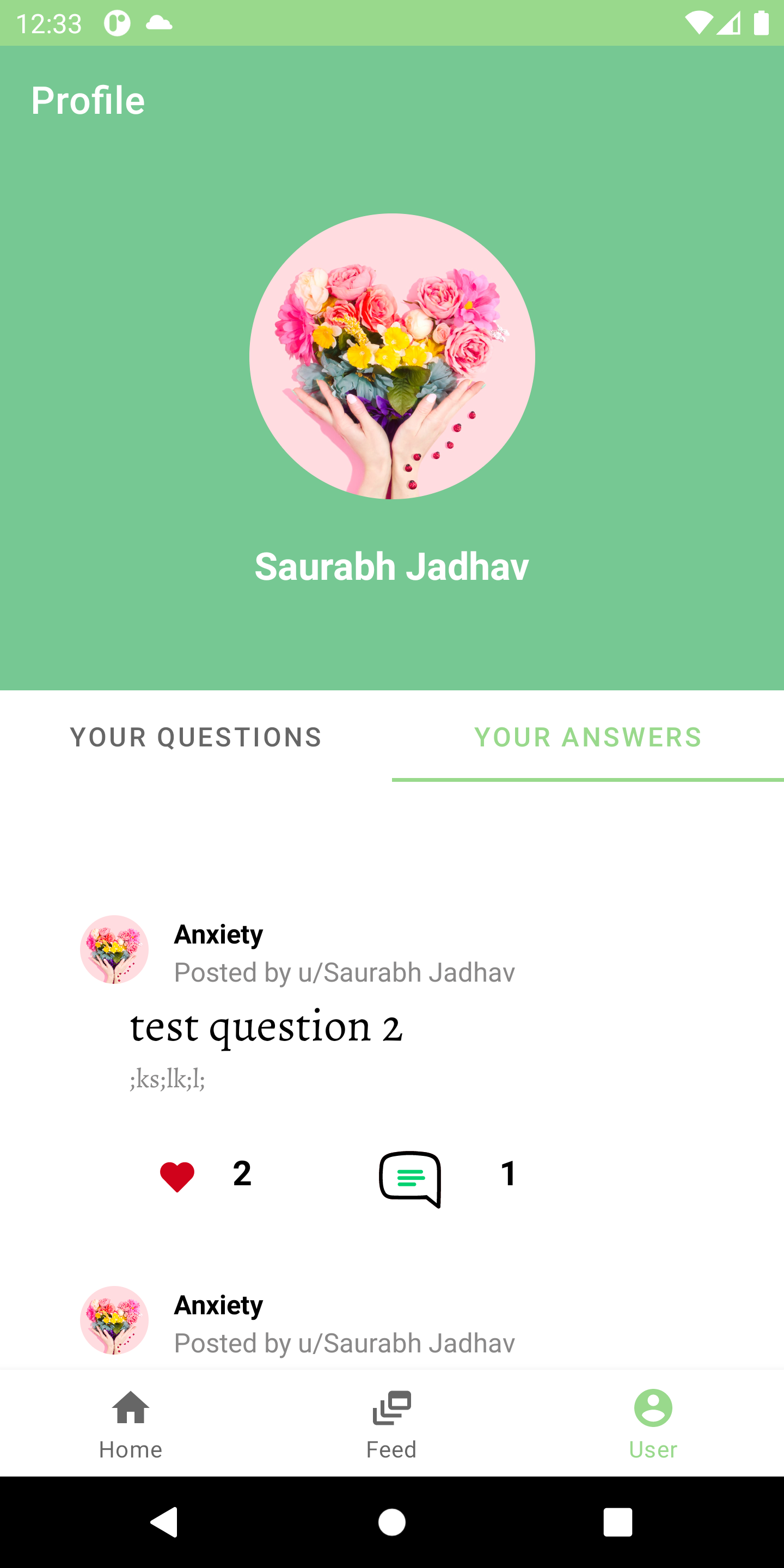
Lets me show you final screen after adding data to screen.
Output:
I hope you have liked it Lets learn more about Android Development together.